Hi, since long i was thinking to blog about this topic and finally got a chance to do so. Normally we prefer to create Designer Based Workflows, as they are easy to create, manage and quite flexible.
But still at situations Designer Workflows not allow us to do certain Tasks, for an instance , performing cross site Tasks, like Creating a Document Library in a different site or Creating a new site on certain conditions.
Instead of Creating Complete Workflow we can still use Custom Activities Development in Visual Studio 2010 which is much easier to built and easy to manage for client's Power Users.
So what i mean is simple “Code an Activity” instead of Coding a Complete Workflow.
Now lets come to the point and follow some steps to create a simple Workflow Activity. Remember this will be Number 1, and quite easy one, later i will post some bigger and much cruciall Activities.
What I’m about to show you is what I did and tested in the following environment:
• Microsoft Windows server 2008 R2 Enterprise Edition• SharePoint Server 2010 Enterprise Edition
• MS SQL 2008 Enterprise Edition
• Visual Studio 2010 Ultimate
• Code was done in C# only
(Note: we don’t need the exact environment, but as such a similar one to get started)
Step: 1) Create a Project to support Activity Deployment to Farm
Create an Empty Project in VS2010 and Name it “CustomActivityDemo”, make Sure it should be a Farm Scoped Project.(No SandBoxed), And select the site on which you like to test it /*Empty SharePoint Project*/

Next Click Finish.. It will be just like a scenerio where this project will act as a Rocket Launcher for our Rocket(Activity).. :)
We will setup code and properties later in this, now lets move ahead and create our Activity Project in the Same Solution.
Step :2) Create WorkFlow Activity Project
At the Solution level Right Click and “Add a Project” in VS2010.
Next Select the Visual C# >Workflow >Workflow Activity Library and set the project name as ‘CreateSiteActivity’.
Now whole solution will appear like this:

Note that after adding Workflow Activity Library Project a Design view of Activity appears which shows Activity1.cs
lets now follow these subpoints:
• Right click the Activity1.cs and rename it to “CreateSiteActivity.cs”,
• Again Right Click “CreateSiteActivity” and click “View Code”.

• Now add a reference to
Microsoft.SharePoint.dll and Microsoft.SharePoint.WorkflowActions.dll located in ISAPI Library:
• Import the following NameSpaces in the code file:
This will how the code will appear now:

Step :3) Some Introduction to WorkFlow Terminologies:
This will be boring a bit but very quickly please do read these lines as it will clear our process in a bigger way:
Dependency Property
Dependency properties provide a centralized repository of a workflow's state.
The DependencyObject is a hash table that stores the current values of any DependencyProperty that is applied to it.
Dependency Object Class:
An instance type of a dependency property can be bound to instance data, in which case the actual value is not determined until runtime.
You set this type of dependency property's value to be an ActivityBind to bind to the actual value that is accessed at runtime.
ActivityBind binds an activity property to any of the following:
• Another activity property.
• A field.
• A property.
• A method.
In Simpler Word:
Dependency Property provide a mechanism that allows SharePoint Designer to provide values for your custom action before you add your custom functionality.
To allow SharePoint Designer to pass values to your custom action when the workflow runs, you must create public properties inside your custom action. In this example, you will create a custom action that will create a new site within SharePoint whenever executed inside a SharePoint Designer workflow.
Before Writing any Dependency Property and its Binding Property, we have to think about our Inputs, so in this example here are the inputs:
SiteUrl: Where the site will be located.
SiteTitle: Title for the new site.
SiteDescription: Description for the new site.
SiteTemplate: Template to use to create the new site.
InheritPermissions: True, if the new site will inherit permissions from its parent site.
For each field, you create a property in your custom action to allow the users to specify these values when designing their workflow in SharePoint Designer.
When creating properties for a custom action, you create the property itself and a matching DependencyProperty. The DependencyProperty class allows SharePoint Designer to bind the property to the UI in the workflow wizard, where the user specifies the values of these properties in the workflow being created.
Note: Please follow the Syntax we will use while Creating a Property and a Matching Dependency Property, there is Matching Relation require in both of these Names.
Add the following code to create a property and DependencyProperty for SiteUrl:

Parameters it takes are : 1)String Name of the associated Property, Type of Property, Type of Owner(Activity Class Name)
Now for a while just think on what we have written:
Dependency Property Name : SiteUrlProperty and Matching Property Name is SiteUrl
It is required to follow above Syntax i.e always write Dependency Property with Suffix “Property” if you miss this then you will get Compilation Error.
Step: 4) Getting Current Workflow Context Step:5) Complete Rest of Dependency Properties Simmilarly
simmilarly complete the Dependency Properties for rest of inputs we discussed earlier and code should now look like this:
Step:6) Execution of Main Action
Whenever in Workflow the pointer reaches to the Activity then There is an entry method which executes and this method/function is Execute :
We need to override this function to write the functionality of our activity:
This function returns an ActivityExecutionStatus which is an enum containing values. And takes executionsyntax as parameter.
For getting refference to current site , we will use _Context property that we defined above
Step:7) Code to insert in Execute Method:
Note: If an error occured then we have used ISharePointService to logtohistory list whatsoever error occurs.
Step : 8) Create ACTIONS file
NOTE:Before reading the next lines first Sign the Assembly and run "sn.exe -T 'Path to Dll'" command to get the PublicKeyToken Value of CreateSiteActivity.dll
Next Step is to Create an Action File, this file is require to tell Designer how the Activity will appear in UI to the USER, this will make the custom activity to appear in the Wizard.
An ACTIONS file is an XML file that is used by SharePoint Designer's workflow wizard to provide a user-friendly experience for configuring actions. Every action must be configured in an ACTIONS file before it can be used in SharePoint Designer. By default, there is only one ACTIONS file, located at
{14 Hive}\TEMPLATE\1033\Workflow\WSS.ACTIONS, and it contains an entry for each of the built-in actions in Windows SharePoint Services.
for a complete refference of this file please visit this msdn article:
http://msdn.microsoft.com/en-us/library/bb897811.aspx
Step:9) Deployment Process
Deployment Process Consists of Four Sub Steps:
1)Sign The Assembly and Get The Public Token and place it in the ACTIONS file:
Right Click “CreateSiteActivity” Project and then go to Properties and then in “Signing”, create a new key name it “CreateSiteActivity”, then BUILD the Project and later Sign the assembly using:
Sn.exe –T “path to CreateSiteActivity.dll”
Note the PublicKeyToken and modify the Actions file accordingly.
2)Place the ACTIONS file to the Worklfow Mapped Folder of SharePoint 14 Hive:
In the CustomActivityDemo project Add a SharePoint Mapped Folder to Template /1033/Workflow
i.e{SharePointRoot}/Template/1033/Workflow and save the above ACTIONS file, with ACTIONS as extension.
3)Deploying CreateSiteActivity DLL to GAC and Create Safe Control in Web Config of the Web Application.
1)Expand the Package Item in the CustomActivityDemo Project,

Then double click it, which will open the Package properties then click Advanced.

click Add. And select Existing Assembly:

Add Necessary Information to add safe control, when complete it will appear as this:

4)Add Authorize Type in web config
To do this, we will include a feature in sharePoint Project: "CustomActivityDemo" (The Rocket Launcher) Project, Name it something Suitable and Scope it to WebApplication: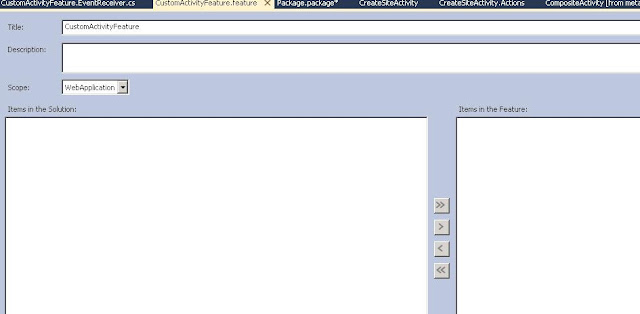

Then right click the Feature and Add a Reciever:

Add using Microsoft.SharePoint.Administration Namespace to its code file
Uncomment Feature Activated Block.
As scope of the Feature is SPWebApplication , from properties take the instance of feature parent as spwebapplication:Uncomment Feature Activated Block.
If you see the properties of SPWebAPPlication Instance then you can see a collection WebConfigModifcations:

SPWebConfigModification modification = new SPWebConfigModification();
Now we will initiate these properties of Modification:
Entire Code will appear as this:
Next Build, Package and Deploy your solution.
Step: 10) Test the new Action
Next open the site which we used for testing this project in SharePoint Designer and Create a New List Workflow on any of List (take Task).
And in List Actions you can see our newly created activity:

It will Work as it did at my end. Please test yourself and use it in your daily workflow cycle.
Hope it will help and Workflow Activities creation will be now a simple process for you all.


