Friday, October 19, 2012

Custom SharePoint 2010 Ribbon Action for a Specific List Using Visual Studio 2010

Greeting to all my blog readers, we all know how good the sharepoint 2010 Ribbon is, and most wonderfull part is that it is Customizable by using both Visual Studio 2010 and SharePoint Designer 2010.

Recently on Microsoft Technet Forums a person asked this question: "I need a Ribbon Button for a Specific Lists using Visual Studio 2010" as he was thinking to attach Javascript code or CSOM code on that button(not possible with designer way), there was no way he was able to achieve the same using in Elements.xml file.

So i tried my luck with Server Side Object Model to achieve this and later even got the code Client Script object model and Server Side Object Model code to do this. In this blog i am only sharing the way i discovered this in server side object model.
I am showing code written as a Console Application to create a Ribbon Button on Specific List using Visual Studio.

It uses UserCustomActions Collection Property of SPList Object and to add a new UserCustomAction.
The Major Property is:
UserCustomAction.CommandUIExtension, this recieves token from the XML, the same way we enter in the Elements.xml during the traditional way. So here is how my code looks like:-  


Thats it and you will get a Explicit Ribbon button for a Particular List Only...

Thursday, July 19, 2012

SharePoint 2013 is Running at my Home System Now


SP 2013 is at my home now:

It took me three days to make it happen, but yes I have got SP2013 Foundation Preview running on my system.
It is not that tricky that I thought it going to be, actually if we struggled during 2010 and know very well the right ways of installing SharePoint on  a 64 bit environment then it won’t be a big deal this time as we are habitual of certain issues.

So here Is how my first 2013 site  SharePoint foundation site looks like:


My Current System Configuration:

1)Windows Server 2008 R2

2)Sql Server 2008 R2.

3)VS 2012 RC

4)SharePoint Foundation 2013.

How I made it happen:

1)I downloaded SP Foundation from here:
http://www.microsoft.com/en-us/download/details.aspx?id=30345


2)Next I Downloaded SP 1 for Windows Server 2008 R2, which is require for SP2013 install from here:

Next I ran the Pre-requisite for SP2013 , if you find any issues with pre-requisite then suggest to follow this blog, which describes awesome powershell scripts to get them all, it helped me too:

Friday, May 4, 2012

SharePoint, How to Implement Logs in my SharePoint Code Easily..

Hi everyone, today I am going to discuss a very important topic of Implementing Logs in SharePoint Code.

As per the scenario the SharePoint Logs which code generates get stores in the 14 hive folder at location:
C:\Program Files\Common Files\Microsoft Shared\Web Server Extensions\14\LOGS

If you try to see this then you can find logs which SharePoint code creates, and also usage reports, next you can use tools like SharePoint Log Viewer to have a Look into these.

So how can we write these logs in our Customizations?

Many People have their own thoughts on Logging; I have myself used several approaches like:
1) Use a text file, deploy it to the Layouts folder and then write the logs into it, benefit with this is we can view these logs from any SharePoint Site url.

2)Use a Custom List on the Specific SharePoint Site  and implement Logging into it.

3)Use SPDiagnosticsServiceBase class  of Microsoft.SharePoint.Administration to create logs in the SharePoint 14 hive folder, the out of box and generic Way.


Here we are going to discuss the general and best approach, approach number 3 as mentioned above.

Tasks we will do:
1)Create a Utility Logger class which inherits from SPDiagnosticsServiceBase.


2)Create a Console Application which will generate the Logs using our Logger.cs  Class.


We will inherit the SPDiagnosticsServiceBase class:
I am trying to re-use the code written here:  SPDiagnosticsServiceBase

Step:1)Code Logger.cs Class.


2) Code for the Console Application/In our Custom Code of SharePoint Solutions:


Finally we can use SharePoint Log Viewer to View the Logs
SharePoint Log Viewer.


Monday, March 12, 2012

Creating Custom Workflow Activity using Visual Studio 2010 for SharePoint 2010 (SharePoint A to Z Series)

Hi, since long i was thinking to blog about this topic and finally got a chance to do so. Normally we prefer to create Designer Based Workflows, as they are easy to create, manage and quite flexible.

But still at situations Designer Workflows not allow us to do certain Tasks, for an instance , performing cross site Tasks, like Creating a Document Library in a different site or Creating a new site on certain conditions.
Instead of Creating Complete Workflow we can still use Custom Activities Development in Visual Studio 2010 which is much easier to built and easy to manage for client's Power Users.

So what  i mean is simple “Code an Activity” instead of Coding a Complete Workflow.
Now lets come to the point and follow some steps to create a simple Workflow Activity. Remember this will be Number 1, and quite easy one, later i will post some bigger and much cruciall Activities.
What I’m about to show you is what I did and tested in the following environment: 
• Microsoft Windows server 2008 R2 Enterprise Edition
• SharePoint Server 2010 Enterprise Edition
• MS SQL 2008 Enterprise Edition
• Visual Studio 2010 Ultimate
• Code was done in C# only
(Note: we don’t need the exact environment, but as such a similar one to get started)

Step: 1) Create a Project to support Activity Deployment to Farm

Create an Empty Project in VS2010 and Name it “CustomActivityDemo”, make Sure it should be a Farm Scoped Project.(No SandBoxed), And select the site on which you like to test it /*Empty SharePoint Project*/

Next Click Finish.. It will be just like a scenerio where this project will act as a Rocket Launcher for our Rocket(Activity).. :)
We will setup code and properties later in this, now lets move ahead and create our Activity Project in the Same Solution.
Step :2) Create WorkFlow Activity Project
At the Solution level Right Click and “Add a Project” in VS2010.
Next  Select the Visual C# >Workflow >Workflow Activity Library and set the project name as ‘CreateSiteActivity’.
Now whole solution will appear like this:
Note that after adding Workflow Activity Library Project  a Design view of Activity appears which shows Activity1.cs
lets now follow these subpoints:
• Right click the Activity1.cs and rename it to “CreateSiteActivity.cs”,


• Again Right Click “CreateSiteActivity” and click “View Code”.


• Now add a reference to
 Microsoft.SharePoint.dll and  Microsoft.SharePoint.WorkflowActions.dll   located in ISAPI Library:

• Import the following NameSpaces in the code file:


This will how the code will appear now:
Before going further lets discuss some of the important terminologies:

 
Step :3) Some Introduction to WorkFlow Terminologies:
This will be boring a bit but very quickly please do read these lines as it will clear our process in a bigger way:

Dependency Property
Dependency properties provide a centralized repository of a workflow's state.
The DependencyObject is a hash table that stores the current values of any DependencyProperty that is applied to it.

Dependency Object Class:

An instance type of a dependency property can be bound to instance data, in which case the actual value is not determined until runtime.
You set this type of dependency property's value to be an ActivityBind to bind to the actual value that is accessed at runtime.

ActivityBind binds an activity property to any of the following:
• Another activity property.
• A field.
• A property.
• A method.

In Simpler Word:

Dependency Property provide a mechanism that allows SharePoint Designer to provide values for your custom action before you add your custom functionality.

To allow SharePoint Designer to pass values to your custom action when the workflow runs, you must create public properties inside your custom action. In this example, you will create a custom action that will create a new site within SharePoint whenever executed inside a SharePoint Designer workflow.

Before Writing any Dependency Property and its Binding Property, we have to think about our Inputs, so in this example here are the inputs:

SiteUrl: Where the site will be located.

SiteTitle: Title for the new site.

SiteDescription: Description for the new site.


SiteTemplate: Template to use to create the new site.

InheritPermissions: True, if the new site will inherit permissions from its parent site.


For each field, you create a property in your custom action to allow the users to specify these values when designing their workflow in SharePoint Designer.

When creating properties for a custom action, you create the property itself and a matching DependencyProperty. The DependencyProperty class allows SharePoint Designer to bind the property to the UI in the workflow wizard, where the user specifies the values of these properties in the workflow being created.


Note: Please follow the Syntax we will use while Creating a Property and a Matching Dependency Property, there is Matching Relation require in both of these Names.

Add the following code to create a property and DependencyProperty for SiteUrl:

Parameters it takes are : 1)String Name of the associated Property, Type of Property, Type of Owner(Activity Class Name)


Now for a while just think on what we have written:

Dependency Property Name : SiteUrlProperty and Matching Property Name is SiteUrl
It is required to follow above Syntax i.e always write Dependency Property with Suffix “Property” if you miss this then you will get Compilation Error.
Step: 4) Getting Current Workflow Context


Step:5) Complete Rest of Dependency Properties Simmilarly

simmilarly complete the Dependency Properties for rest of inputs we discussed earlier and code should now look like this:

Step:6) Execution of Main Action

Whenever in Workflow the pointer reaches to the Activity then There is an entry method which executes and this method/function is Execute :


We need to override this function to write the functionality of our activity:

This function returns an ActivityExecutionStatus which is an enum containing values. And takes executionsyntax as parameter.


For getting refference to current site , we will use _Context property that we defined above


Step:7) Code to insert in Execute Method:


Note: If an error occured then we have used ISharePointService to logtohistory list whatsoever error occurs.

Step : 8) Create ACTIONS file

NOTE:Before reading the next lines first Sign the Assembly and run "sn.exe -T 'Path to Dll'" command to get the PublicKeyToken Value of CreateSiteActivity.dll

Next Step is to Create an Action File, this file is require to tell Designer how the Activity will appear in UI to the USER, this will make the custom activity to appear in the Wizard.


An ACTIONS file is an XML file that is used by SharePoint Designer's workflow wizard to provide a user-friendly experience for configuring actions. Every action must be configured in an ACTIONS file before it can be used in SharePoint Designer. By default, there is only one ACTIONS file, located at


{14 Hive}\TEMPLATE\1033\Workflow\WSS.ACTIONS, and it contains an entry for each of the built-in actions in Windows SharePoint Services.


for a complete refference of this file please visit this msdn article:
http://msdn.microsoft.com/en-us/library/bb897811.aspx

Step:9) Deployment Process

Deployment Process Consists of Four Sub Steps:


1)Sign The Assembly and Get The Public Token and place it in the ACTIONS file:

Right Click “CreateSiteActivity” Project and then go to Properties and then in “Signing”, create a new key name it “CreateSiteActivity”, then BUILD the Project and later Sign the assembly using:

Sn.exe –T “path to CreateSiteActivity.dll”

Note the PublicKeyToken and modify the Actions file accordingly.

2)Place the ACTIONS file to the Worklfow Mapped Folder of SharePoint 14 Hive:


In the CustomActivityDemo project Add a SharePoint Mapped Folder to Template /1033/Workflow

i.e{SharePointRoot}/Template/1033/Workflow and save the above ACTIONS file, with ACTIONS as extension.

3)Deploying CreateSiteActivity DLL to GAC and Create Safe Control in Web Config of the Web Application.


1)Expand the Package Item in the CustomActivityDemo Project,


Then double click it, which will open the Package properties then click Advanced.

 click Add. And select Existing Assembly:
Add Necessary Information to add safe control, when complete it will appear as this:

4)Add Authorize Type in web config

To do this, we will include a feature in sharePoint Project: "CustomActivityDemo" (The Rocket Launcher) Project, Name it something Suitable and Scope it to WebApplication:


Then right click the Feature and Add a Reciever:
Add using Microsoft.SharePoint.Administration Namespace to its code file
Uncomment Feature Activated Block.
As scope of the Feature is SPWebApplication , from properties take the instance of feature parent as spwebapplication:

If you see the properties of SPWebAPPlication Instance then you can see a collection WebConfigModifcations:

Now we have to add a new webconfigmodifcation to this collection , to do so create an Instance of SPWebConfigModification class:


SPWebConfigModification modification = new SPWebConfigModification();


Now we will initiate these properties of Modification:


Entire Code will appear as this:


Next Build, Package and Deploy your solution.

Step: 10) Test the new Action
Next open the site which we used for testing this project in SharePoint Designer and Create a New List  Workflow  on any of List (take Task).

And in List Actions you can see our newly created activity:

It will Work as it did at my end. Please test yourself and use it in your daily workflow cycle.

Hope it will help and Workflow Activities creation will be now a simple process for you all.

Thursday, November 24, 2011

Programming InfoPath Forms 2007 - Part 1(Creating the Infopath Form Project)

We all know the power of Infopath Forms, everyone simply Love them, they are sleek, easy to use and end users also finds them interesting.

But for Developers, ahh dont tell me, if you believe ---> "They are Easy to Code" and Debug with SharePoint Process w3p.exe??

Actually it is not as simple as we think, from my exeriences with this blog, i will share what i do normally.

This will be 3 parts series and in 1st part we will create the Base, "The Project containing Code".

Many of times when a newbie code with VSTA, he gets confuse how can i attach the process to debug the code and why VSTA is opening VS 2005, by default, so in this post, i will show you how can we create a VS 2008 Code Project for Infopath Forms.

With this as well we have a Case Study, which will remain there for all three Posts.

These Posts are not about designing forms, so i believe if you are reading this then you must be aware of designing Infopath Forms.

Here we will use a very simple Case Study:
  • In a Company namely "Lorem Ipsum" :).. Scrum Follows, and everyday a manager assigns Tasks To his associates, on work they have to perform, Manger uses an Infopath form, to create multiple tasks for his associates.
So Keeping this in mind, i have developed a solution simmilar.

SO Lets Look into it:

Infrastructure:
1)Team Site:We will have a sharepoint site, can take a Team Site, with Enterprise Features Activated.
2)Infopath Form Library:
We will have  an Infopath Form Library “TasksCreator”,namely .
3)Task List: For assigned Tasks we will use Default Team Site Tasks List.
Infopath Form Design:

Please follow these Points to Design the Form:
1)    Open Infopath 2007 Designer and click Design a Form Template:
 
Choose Blank from Infopath Form Template Options:
Don’t Forget to “Enable Browser Compatible Features Only”.
2)Next we will Design our Form , so that i will contain a repeating table a check box and a manager textBox like this:


Remember, we are not giving importance to the way form is designed, instead we want  to give prefference to Coding, so go ahead change the way it looks .

Details:


So here is how  My Data Source is Presently:


·         managerName: Manager’s Name-Text
·         assignTaskCheck- CheckBox Value True/False
·         Entry: Section
  • Group7: Repeating Table
·         Group1: Contact Selector
·         TaskDescription,DueDate,DateComplete
·         targetSite(V. Important) : To get the current Web url on which this form is running, instantiating SPSite object
among all of these targetSite is very important field, in this we will store the target site and use its url to instantiate SPSite object in our code..

For details on how to add Contact Selector in

Now Comes the Action Part: Coding this Form to perform our Action:

Here are the Steps we will follow to do this for us:
1)Modify Trust Level

Go To Tools in the Menu, from there go to Form Options and select “Security and Trust”, uncheck Automatically Determine Security Level and then select “Full Trust”.


2)Change The Coding Language for VSTA
I am a C-Sharper, so I will choose C#, you will find this in” Programming “ section of Form Options:


Also at a point of time if you feel that you need to remove the code, then you can do this by clicking Remove Code Button.
 
3)Make Data Connections:

Before Starting Coding we will create two Connections and Manage Submit Options,


a)Context: For Contact Selector, as you can find details in the link http://msdn.microsoft.com/en-us/library/ms558892.aspx

b)“SharePoint Library Submit”- This we will use to modify later with our code to submit our form in the library, for now just create it as follows:
Go to Data Connections then select "To Submit Data to Document/ Form Library"

For Now just Give any Form Library in the Site, later we will modify it using code.


I have Given File Name with a Format: concat(managerName, "-form", today())
you can choose different way, and do check Allow Overwrite if file exists. That’s it finish it by doing next twice.

4)Enable Submit Options:

Go To : Tools in Menu, Submit Option and Configured as below, choose Perform Custom Code action,


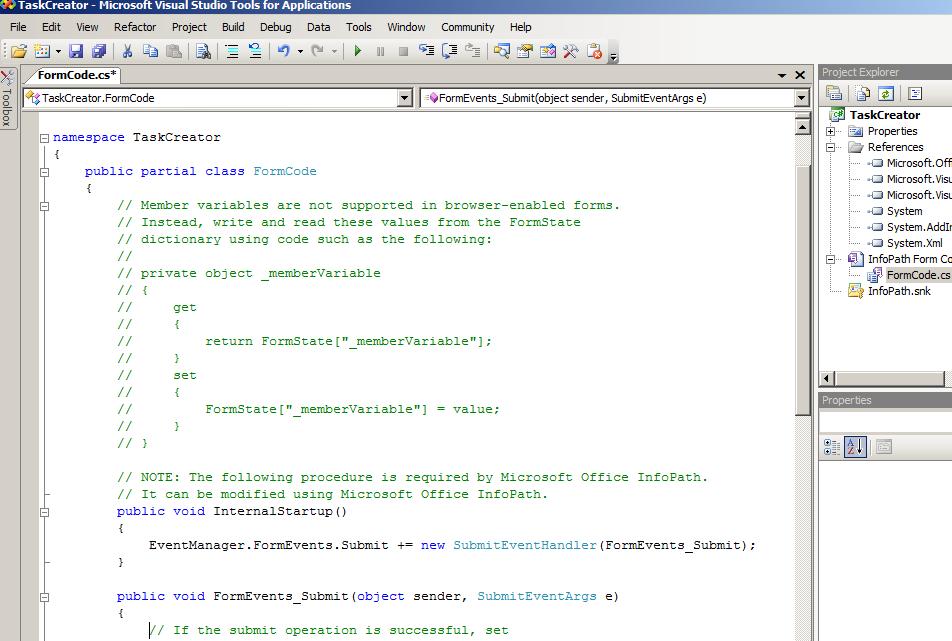
Press Edit Code. Save the form if its prompted and then it will open VSTA -2005 Code for you in VS-2005 Environment,


Don’t do anything now just Save it, and if asked , press ok in the submit Options in Infopath Designer and Save the code .


5)Now Lets Convert Our Code in the VS-2008 Code.

Go to the Infopath Designer click on Submit Button and in Button Properties in Action Drop Down Choose Submit, and that’s it. We are now ready with coding work. Save The Form.


Close the VSTA , VS 2005 project, do copy the directory path of it, and open then open VS-2008.Or Just Change the Location of the Project and then open it in VS2008, It Will ask you to Upgrade the Project, Please do that and that’s it we are done with it.
It Will Get Upgraded, Now Close The Project.


* Save  Form as Source Files:
Next, we will Extract the Form Source Files and save it in a Folder as “Infopath Form Template” Open the Form in Infopath Designer 2007, Go to File then choose Save as Source Files.


NOTE: Please Do Follow the Same Name of the Folder as we have choosen.

Now Copy that Folder and Place in the Project that we upgraded above at root.

* Open the Project in VS 2008.Open the project again and “Click show all files”, then you will be able to see Infopath Form Template folder, include the folder in the project.


Rebuild The Project, and you can see pdb and dll created in the same folder.

If .pdb files are not created then check if the Project is in Debug mode and Debug Config should Be Full.

For this , go to Project Properties, their select “Build” and from there choose Advanced option in the lower right corner, and in output for Debug Info Change Drop Down Value to full, see below:


Save the Project and Now we are ready with the upgrade and its finally a Infopath Form SharePoint Compatible VS-2008 Project. You can now see that VS 2008 contains all Designer Menu Items and Options.

Data Source and rest of Properties are enabled in the same VS2008,

Open Manifest.xsf file in Infopath Form Template Folder, so here we have over Designer Enabled here in you can see the form right there in VS2008.:


Go To Second Part of this Blog to see how to do coding  with this  to achieve our Case Study.

  • It Contains a Manager Name Text Box(We will use it for Naming the Form), as per logic it contains name of manager who will assign multiple tasks to his associates.
  • "Assign Action Item" Check Box, If Checked then our repeating table will get appear and manager can create multiple Tasks in it , it will look like this:

Wednesday, October 19, 2011

Record Center 7089 error, Access Denied while creating SharePoint 2007 acess Denied

Actually, my client has asked me to do some fun with OfficialFile.asmx service,wwooooh i was thinking for it self quite .

But on his site collection when i tried to create a record site, first i got access denied error but later i checked site was created but it was doing nothing..Strange

And then i went into more details and Got the main reason of this error:

How i resolved the problem.:

•First i tried to activate Office SharePoint Server Publishing Feature(requirement of Record Site Template)..//Got access denied error

•Then after doing some Bing Search, i got a STSADM command which resolved my issue, i have to activate Publishing Resource at my Site Collection level, and this what i did:

•C:\Program Files\Common Files\Microsoft Shared\web server extensions\12\BIN>

stsadm -o activatefeature -name PublishingResources -url http://website


Note that we are activating Publishing Resources at the Site Collection.

That was it then when next i went to activate Publishing feature it let me to do that perfectly and later i was able to create a Record Centre Site without any problem.....

Monday, August 29, 2011

SharePoint 2010 Workflow using Visual Studio 2010

In My previous posts I have taken a developer approach to prescribe the things to go for while developing some custom SharePoint solutions, but here Iwill show one by one every step to achieve this. You’re about to witness an evolution in building workflows for Microsoft, no need for command line deployment, specific configuration of workflow features, and dealing with workflow and feature xml files.


What I’m about to show you is what I did and tested in the following environment:
• Microsoft Windows server 2008 R2 Enterprise Edition

• SharePoint Server 2010 Enterprise Edition

• MS SQL 2008 Enterprise Edition

• Visual Studio 2010 Ultimate

• Code was done in C# only

(Note: we don’t need the exact environment, but as such a similar one to get started)
1. In your SharePoint 2010 create a Document Library (unless you already have one) which can be easily achieved by choosing “New Document Library” from the “Site Actions” menu (located in the top left corner) ,give it a name “Here I have Given: Tax Reports” and click “Create”.
Now you need to create a mock contract template in Word 2010 for your Document Library

2. When in your Document Library, click the Library Settings in The top Ribbon under Library Tag.

3. On the Customize Documents page, locate the Columns section.

4. Create a Employee custom column:


o Click Create Column.


o Type in the column name: “Employee”.


o Select the type Single line of text.


o For the “Require that this column contains information setting” click Yes.


o Click Ok to add the new column.

 5. Add two more columns: a “Employer” column that is type Single line of text and a “TaxAmount” column that is type Currency. Both columns should be required.


6. Return to the document library home page.

7. Under Library Tools, extreme left select “New Document” and create a document.

8.       A new document appears in Word 2010,choose “Enable Editing”. Go to File and observe that there are text boxes for the custom columns from the document library:


9. On the Office menu click Save As. Save the document as %PATH OF YOUR CHOICE%\Contract.docx. If you are prompted to confirm saving to the new Word 2010 file format, click “Ok”.


10. Insert content controls for each of the server properties:
o Place the selection in the document where you want the content control to be placed.
o Select the Insert tab on the ribbon.
o Click Quick Parts, then click Document Property, and then click “Emplyee”.
o Repeat these steps to add content controls in the document for the Employer and the Tax Amount properties.
o For now, leave the content controls empty – do not add text to them.

11. On the Office menu, click Exit Word. When prompted to save changes to the document, click “Yes”.


12. Return to the document library in Internet Explorer, click Settings and then select Document Library Settings.


13. On the “Customize Documents” page, locate the “Content Types” section and click the Document link.

14. NB. If you can’t locate the “Content Types” section, in the “General Settings” section locate “Advanced Settings” in there switch the radio button under “Allow management of content types” to “Yes”, now when you come back to the “Customize Documents” page you should be able to locate the “Content Types” section.


15. On the “List Content Type: Document page”, click the “Advanced Settings” link.


 16. Select the Upload a new document template radio button and then click Browse. Browse to select %PATH OF YOUR CHOICE%\Contract.docx and then click Ok.

17. In Internet Explorer, return to the document library.


18. Upload a new document:

o In the document library, click the “New Document” Library Tools and then click “Document”. Word starts and loads a new document based on the contract template you created.
o Fill in the values for Title, Employee, Employer and TaxAmount. You can fill in the values on the document properties bar (just below the ribbon) or you can fill in the content controls: the end result will be the same.
o Once all required fields have been filled in, on the Office menu, click Save.
o Save the document with a filename of your choice to the document library. If you receive a message that the document must be checked in for it to be visible to others, click OK.
o On the Office menu, click Close. When prompted to check in the document, click “Yes”.
o In the Check In dialog, click Ok to accept the version defaults. Exit Word.
o Your new document appears in the document library. Notice that the Employee, Employer and TaxAmount columns reflect the values you entered in the Word document.


19. You may upload additional documents if you wish.


20. Close Internet Explorer.

Now comes the fun part, creating the workflow itself


21. Start Visual Studio.

22. On the File menu, click New and then click Project. The New Project dialog appears.

23. In the list of Project Types, expand SharePoint select 2010.

24. Select the Sequential Workflow project type.

25. Name the project TaxWorkflow, specify the default location and click “OK”.

 
26.   The New SharePoint Workflow wizard appears. Change the workflow name to TaxWorkflow, use your local site where you created your Document Library (eg http://localhost/yoursite) for debugging and click “Next”.
27. Select ListWorkflow and press next, and then choose the default debug setting and library to associate workflow with

Note: If History, Task List is not presented it would not let you create the workflow, please create Task lIst in case of a blank Site template.


29. The new workflow appears in the designer.


Add a CreateTask Activity to the Workflow


30. If the toolbox is not displayed, then on the View menu, click Toolbox.

31. From the SharePoint Workflow tab on the control toolbox, drag a CreateTask activity and drop it onto the workflow designer between onWorkflowActivated1 and the end of the workflow ( ). The new activity is named createTask1 by default.


32. Configure the TaskID property of createTask1:

o In the Properties window, click the ellipsis for the value of the TaskID property. The Bind ‘TaskID’ to an activity’s property dialog appears.
o Type the new member name myTaskId, ensure that the Create property radio <>button is selected and click OK.


33. Configure the TaskProperties property of createTask1:

o In the Properties window, click the ellipsis for the value of the TaskProperties property. The Bind “TaskProperties” to an activity’s property dialog appears.
o Type the new member name “myTaskProperties”, ensure that the Create property radio button is selected and click OK.

34. In the properties window, select the MethodInvoking handler. Type MyTaskCreation and press the Enter key. The code window appears.

35. Add code to the MyTaskCreation event handler and also add the CustomFieldText function.


36. On the View menu, click Designer to return to the workflow designer.


37. In the Properties window, select the text box for the CorrelationToken property value. Type myTaskToken and press the Enter key.

38. Expand the CorrelationToken property to display the OwnerActivityName subproperty.

39. For the OwnerActivityName subproperty, select Workflow1 in the dropdown.

Add a While Activity to the Workflow

40. If the toolbox is not showing, then on View menu, click Toolbox.

41. Drag a While activity and drop it between createTask1 and the end of the workflow ( ). The new activity is named whileActivity1 by default.

42. In the Properties window, locate the Condition property for whileActivity1.


43.   Select Code Condition in the property value

44. Expand the Condition property to display the Condition subproperty.

• 1. For the Condition subproperty, type myTaskNotCompleted and press the Enter key. The myTaskNotCompleted event handler appears in the code window.
• 2. In the Workflow1 class, add the taskCompleted variable at the class-level.


 • 3. Add code to the myTaskNotCompleted event handler that will return a result indicating whether or not the task has completed; the task is completed when its PercentComplete property is 1.0.


Add an OnTaskChanged Activity to the Workflow

48. On the View menu, click Designer.

49. If the toolbox is not visible, then on the View menu, click Toolbox.

50. From the SharePoint Workflow tab on the toolbox, drag an OnTaskChanged activity and drop it in the center of whileActivity1. The new activity is named onTaskChanged1 by default.


51. In the Properties window, set the CorrelationToken property of onTaskChanged1 to myTaskToken.


52. Set the AfterProperties property of onTaskChanged1:

o In the Properties window, select the ellipsis for the AfterProperties property.
o On the Bind ‘AfterProperties’ to an activity’s property dialog, select the Bind to new member tab.
o Name the new member afterMyTaskPropertyChange, ensure that the Create Property radio button is selected and click OK.

53. Set the TaskId property of onTaskChanged1:

o In the Properties window, select the ellipsis for the TaskId property.
o On the Bind to an existing member tab, select the myTaskId property and click OK.

54. Double-click onTaskChanged1 in the workflow designer. The Invoked event handler for onTaskChanged1 appears in the code window.

55. Add code to onTaskChanged1_Invoked that will set the taskCompleted variable to true when the PercentComplete property of the task is 1.0.


56. In the Workflow1 class, set breakpoints on the MyTaskCreation and onTaskChanged1_Invoked methods.

Note: To set the breakpoints, select the first line of each method in the code windowand press the F9 key.

57. Press F5 to start debugging the project.

Note: Watch the output window as the project is built and deployed. The output window shows you many of the steps that VSTO takes for deploying the workflow solution - without VSTO, these are all steps that you would take manually. One of the SharePoint requirements for a new workflow solution is that the SharePoint worker process and IIS must be restarted; thus build/deploy times may vary.


58. Internet Explorer starts and displays the document library with the document(s) that you uploaded.

Note: You might encounter the following warning (below), if you do, click “No” do as it said and start again.


59.   Next Just upload a new document and will able to see the current progress:
60.   Then go Tasks List.


61.You can see a new task created above.


Go Ahead and Edit the document and you can see the status as above.

Just make it 100% complete.


And you can see that TaxWorkflow Completed...